¶ P2 Firmware for Users who use LaserGRBL
This firmware update is designed to improve compatibility between the Tyvok P2 and LaserGRBL software.
¶ 📥 Download
Download the firmware and related files for Tyvok P2.
p2_firmware_update_tutorial_for_users_who_use_lasergrbl-0330.pdf
⚠️ Due to file size limitations, the firmware and flashing tool are not available for direct download. Please contact us at cs@tyvok.com if needed.
¶ 1. Overview
This firmware update resolves the communication failure issue that may occur when connecting the P2 machine using LaserGRBL.
¶ 2. What’s Included
- Fixed communication errors when connecting with LaserGRBL
- Improved compatibility with third-party engraving software
¶ 3. Applicable Users
This update is recommended for:
- Orders shipped before March 30, 2026
- Users who use LaserGRBL as their primary software
¶ 4. Preparation
Before starting the update, please ensure:
- The machine is properly powered on
- The USB cable is securely connected
- The computer is functioning normally
- Do not disconnect power during the update
¶ 5. Update Steps
¶ Step 1: Connect Device
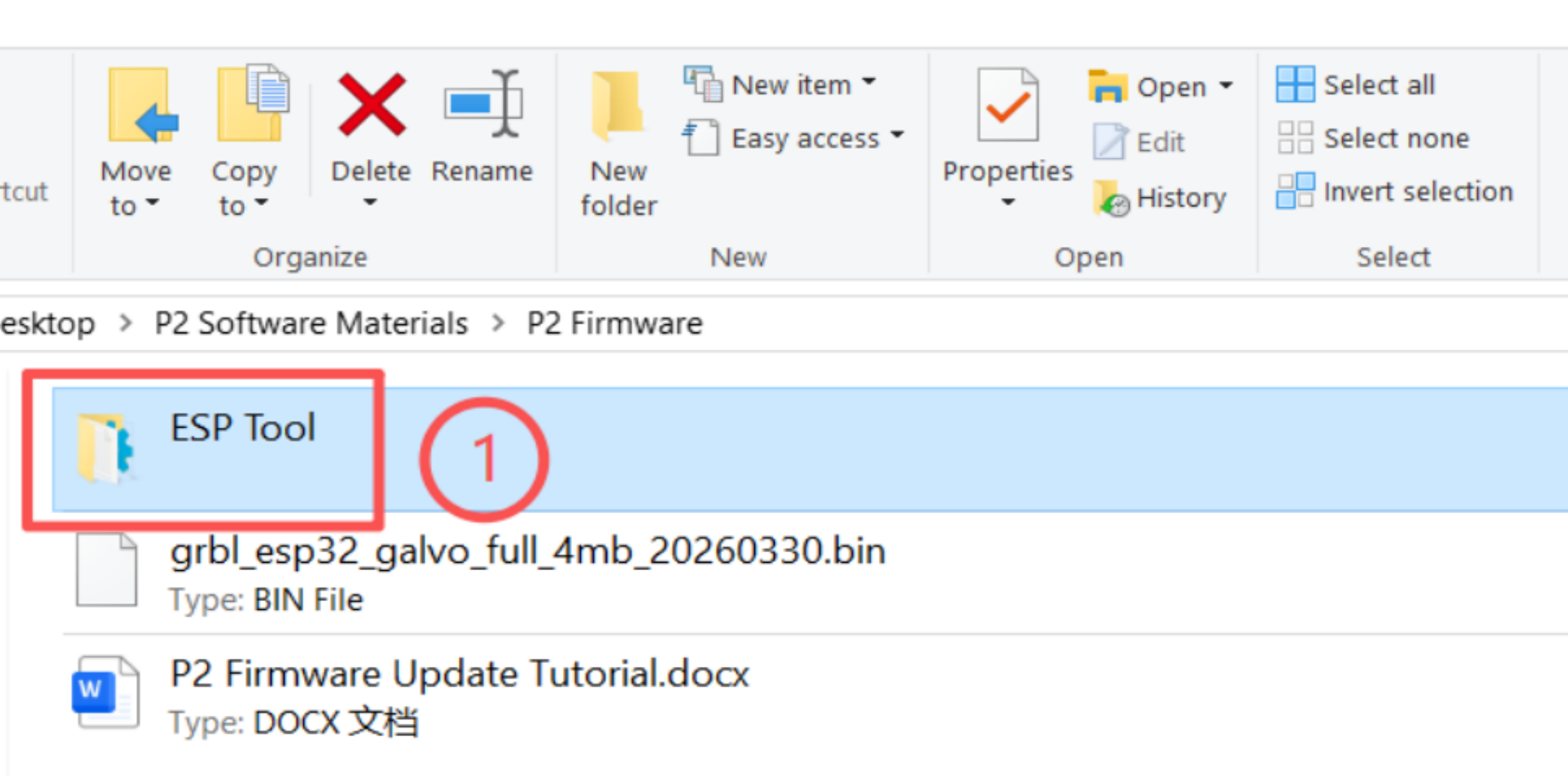
Power on the P2 machine, connect it to your computer using a USB cable, and open the ESP Tool.
¶ Step 2: Launch Tool
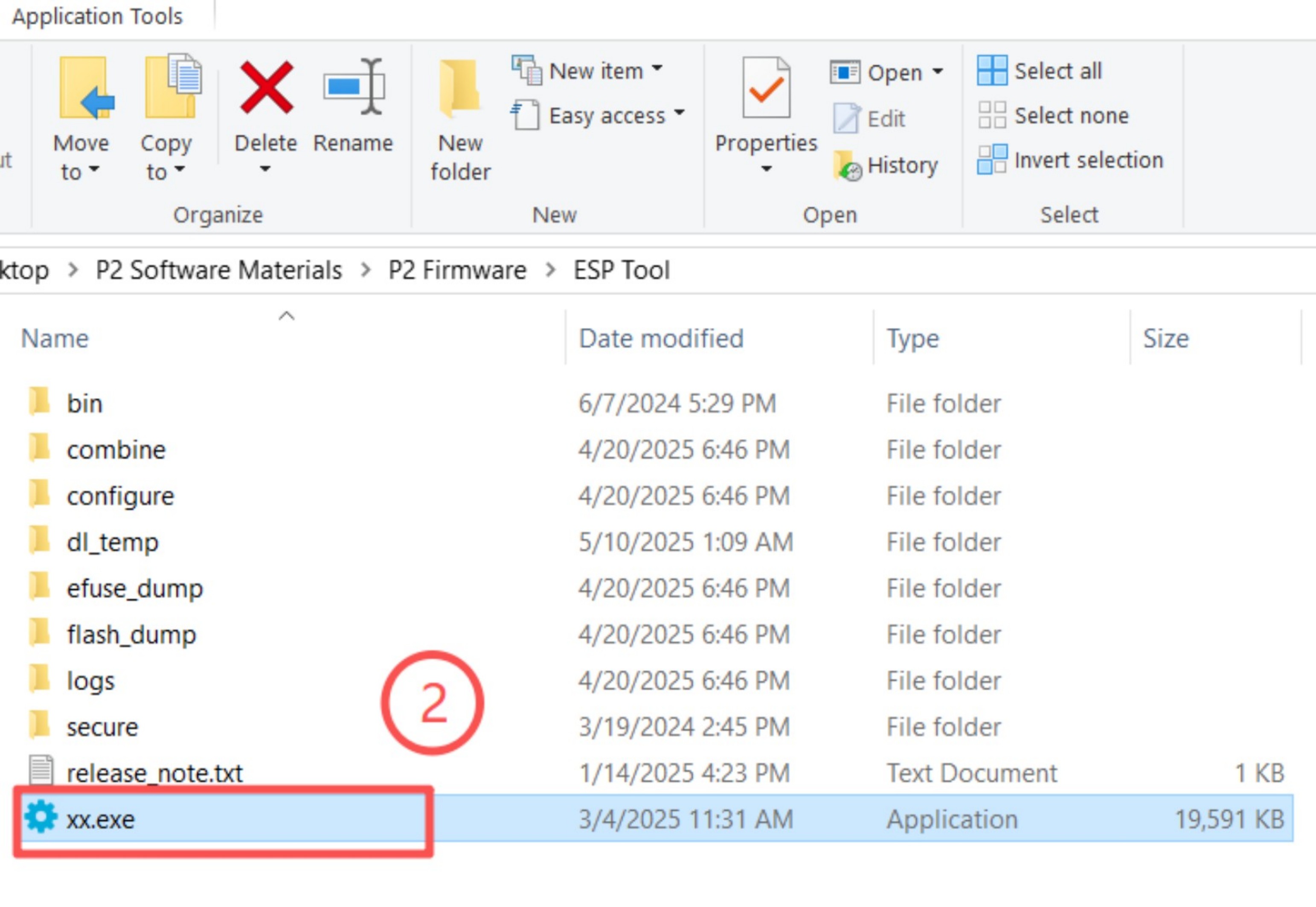
Select and open the firmware tool file “xx.exe”.
¶ Step 3: Select Chip Type
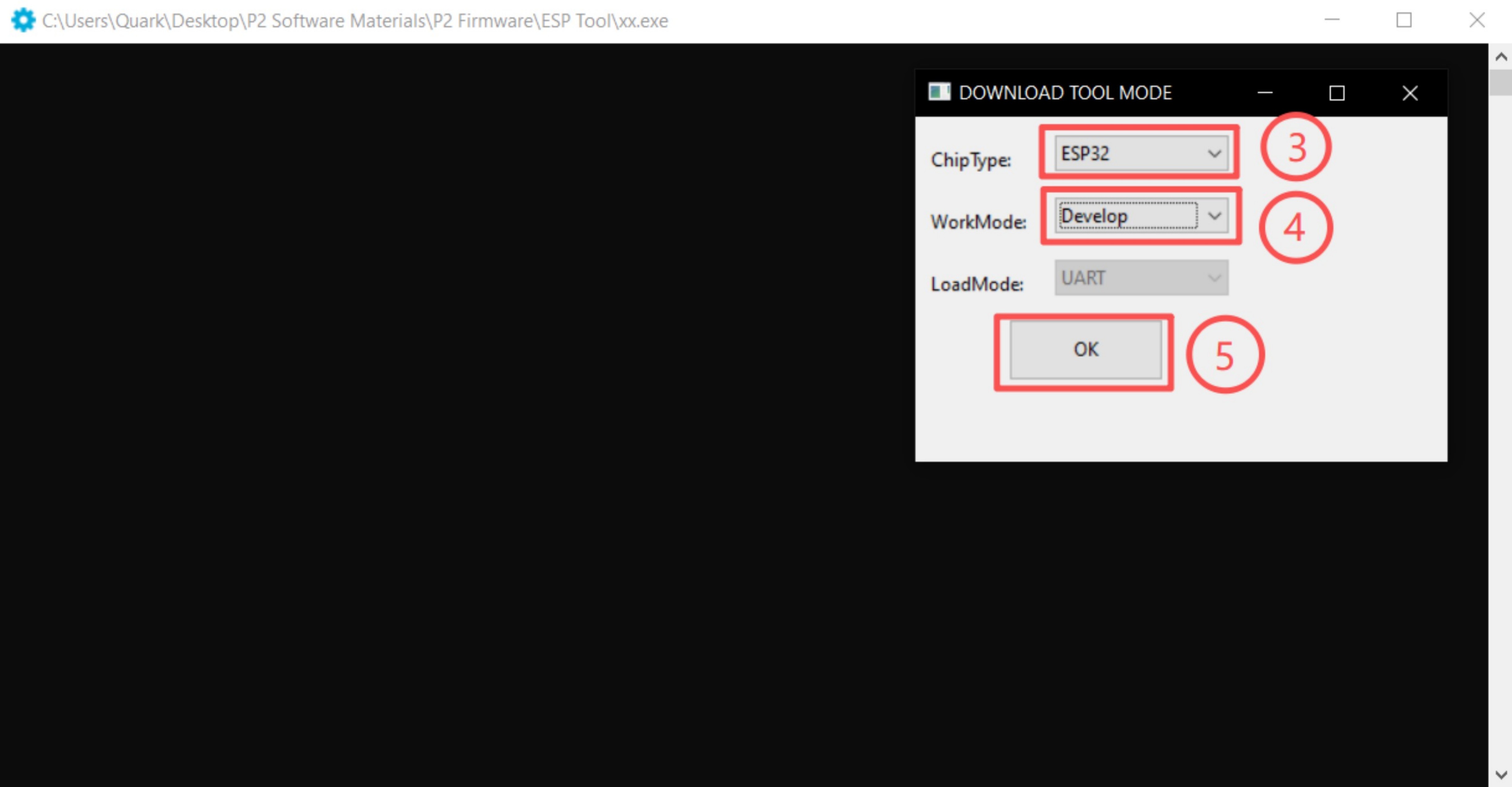
Set Chip Type to ESP32.
¶ Step 4: Select Work Mode
Set Work Mode to Develop.
¶ Step 5: Confirm Settings
Click “OK” to confirm and proceed.
¶ Step 6: Select Port & Set Parameters
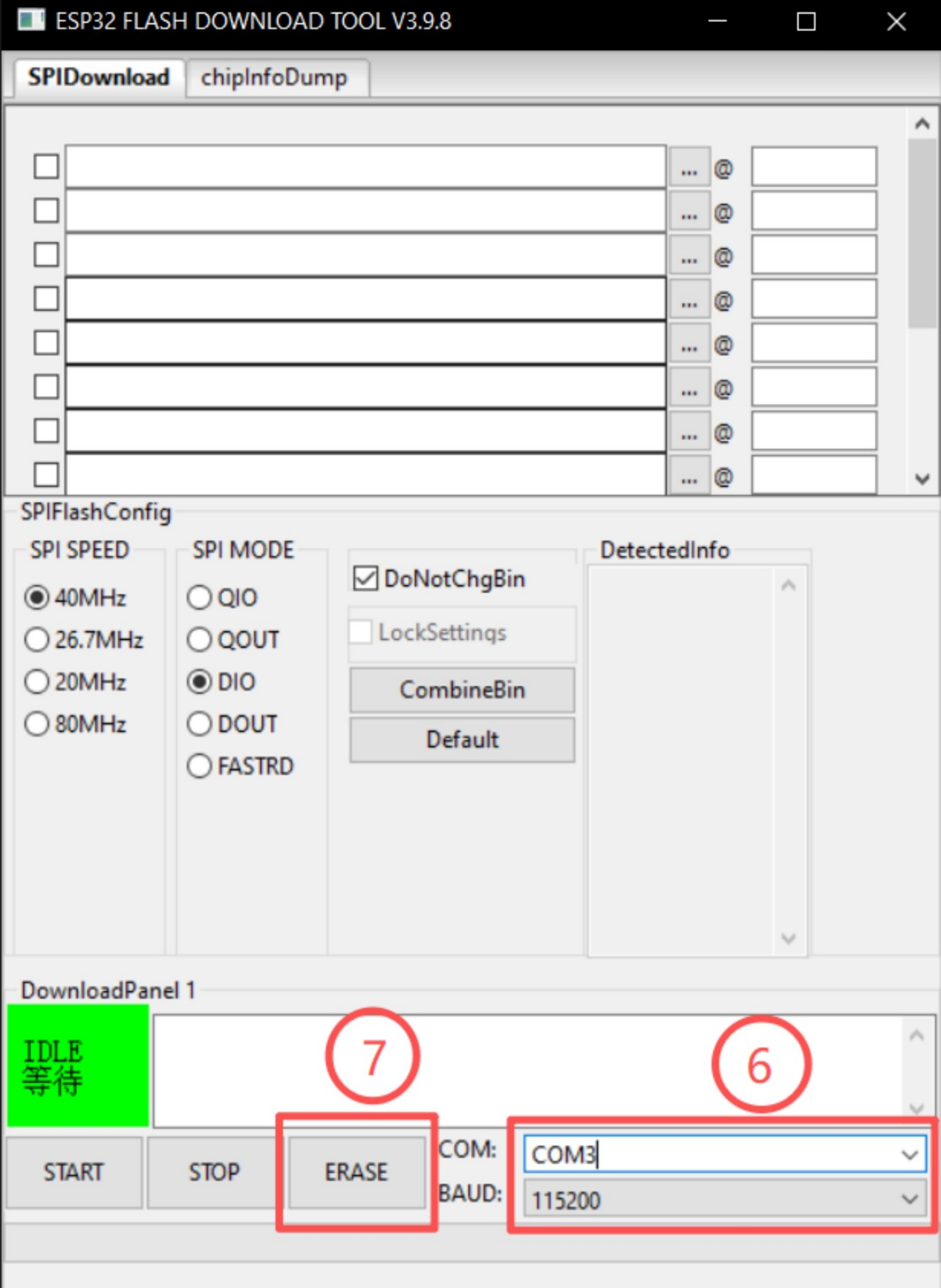
- Select the COM port connected to the P2 machine
- Set the baud rate to 115200
Guidelines for selecting the correct COM port:
- Close engraving software such as LightBurn or LaserGRBL to prevent port conflicts
- Disconnect any unnecessary USB devices
- Keep only the USB connection to the P2 machine
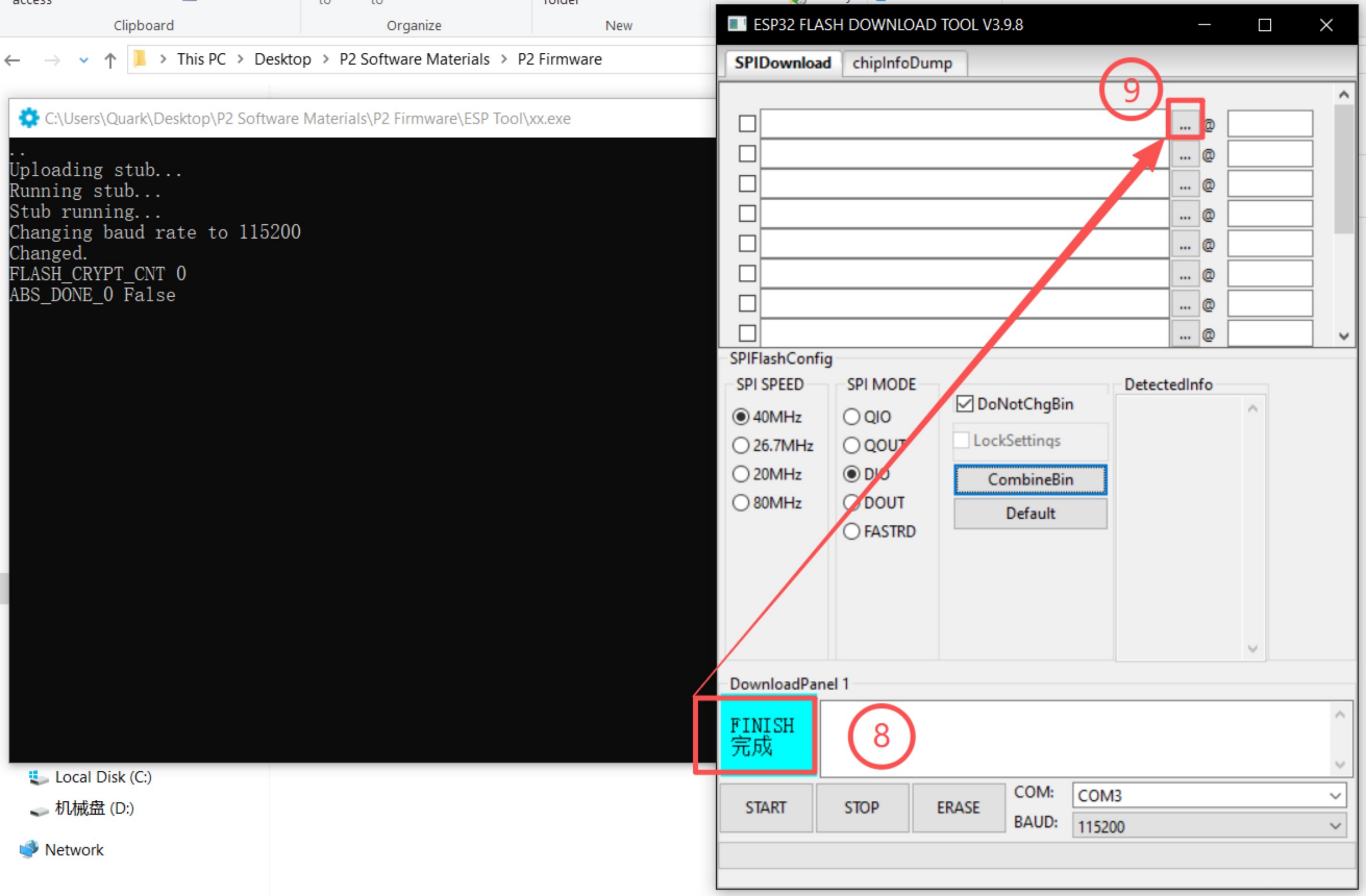
¶ Step 7: Erase Firmware
Click “ERASE” and wait for the system to complete the process.
¶ Step 8: Erase Completed
Once the old firmware has been completely erased, “FINISH” will be displayed.
¶ Step 9: Load Firmware File
Click the “...” button in the top-right corner (first row) to select the firmware file.
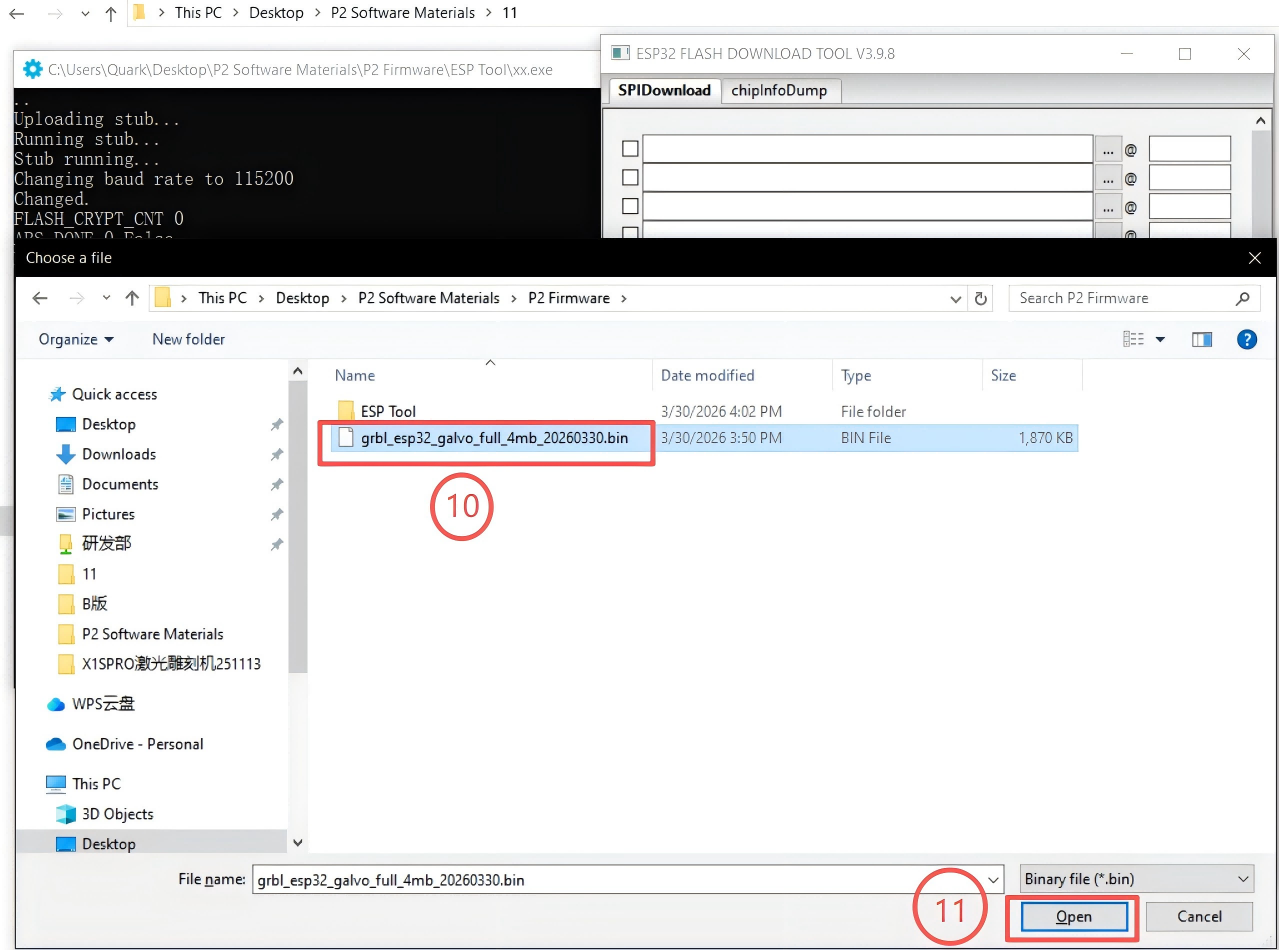
¶ Step 10: Select Firmware File
Choose the firmware file that needs to be updated.
¶ Step 11: Confirm Selection
Click “Open” to load the selected firmware file.
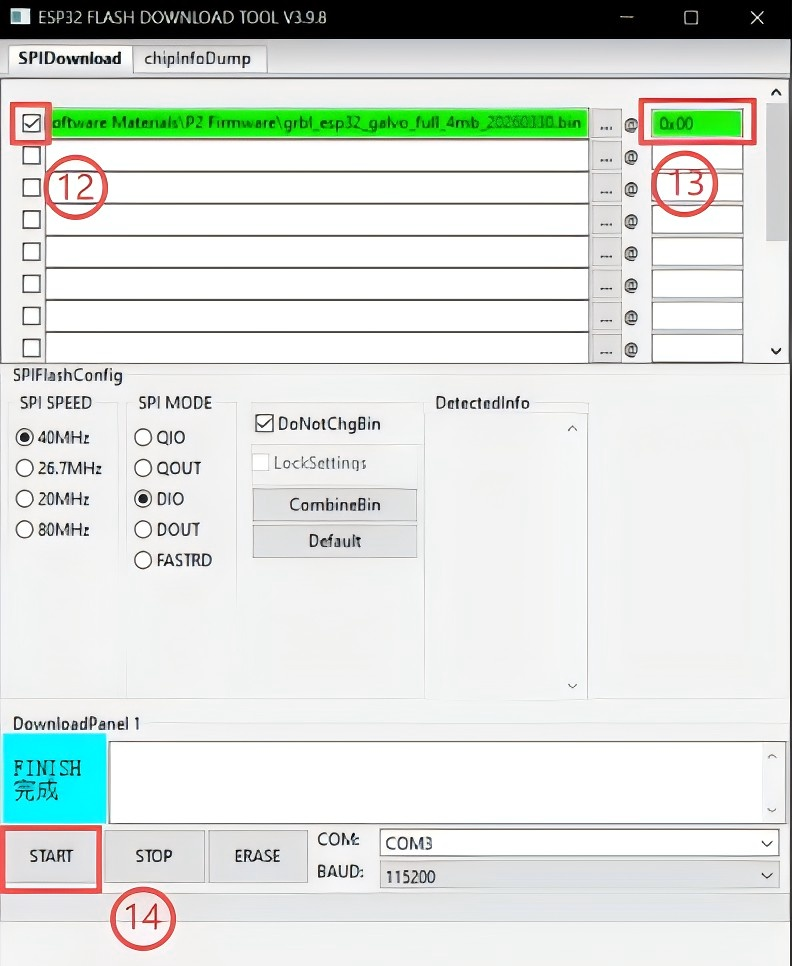
¶ Step 12: Enable Flash Option
Click the checkbox in the top-left corner to enable flashing.
¶ Step 13: Set Flash Address
Enter “0x00” in the address field at the top-right corner.
¶ Step 14: Start Flashing
Click “START” to begin the firmware update.
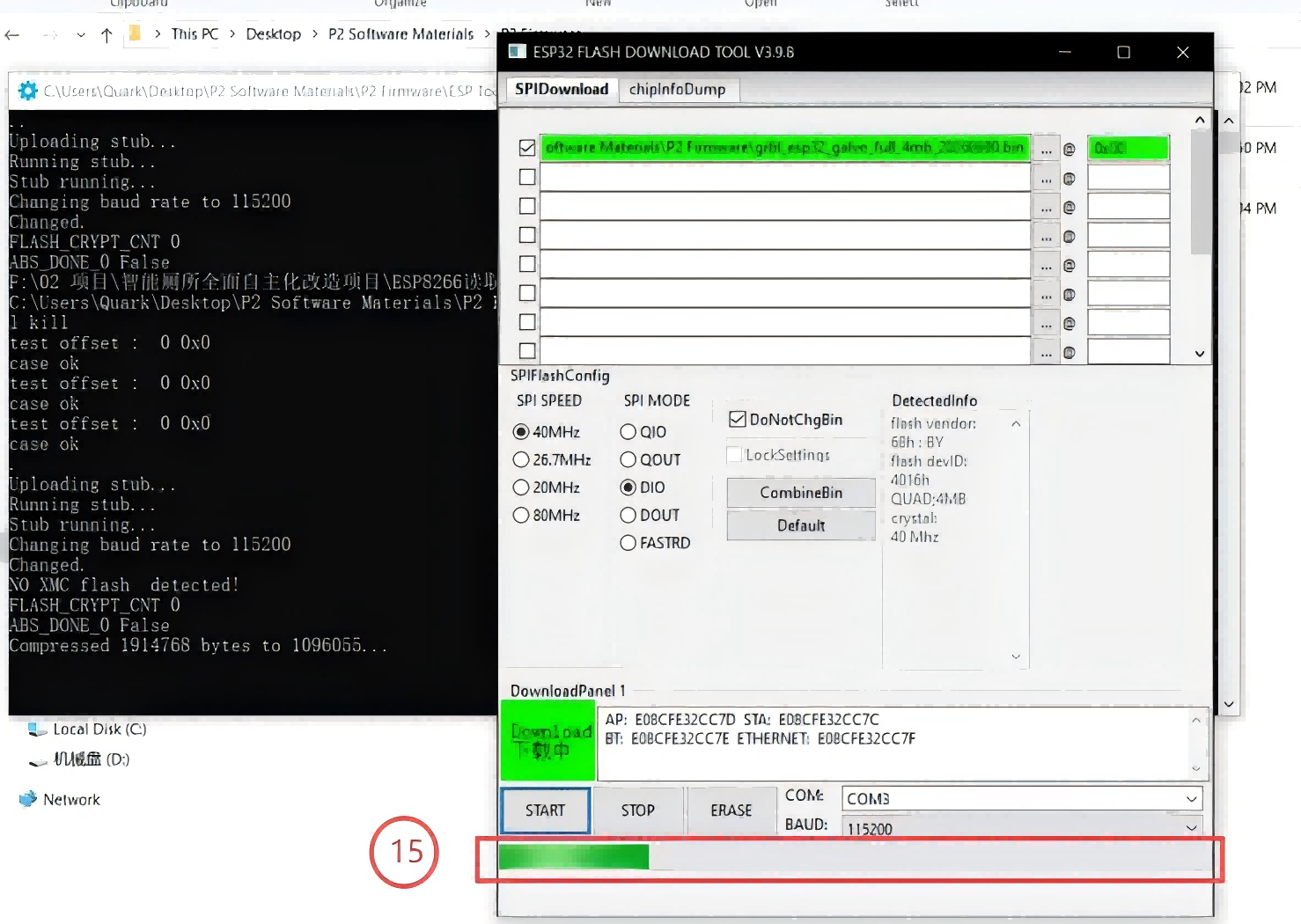
¶ Step 15: Updating in Progress
The firmware is being updated.
⚠️ Do not perform any operations or disconnect the device during this process.
 ---
---
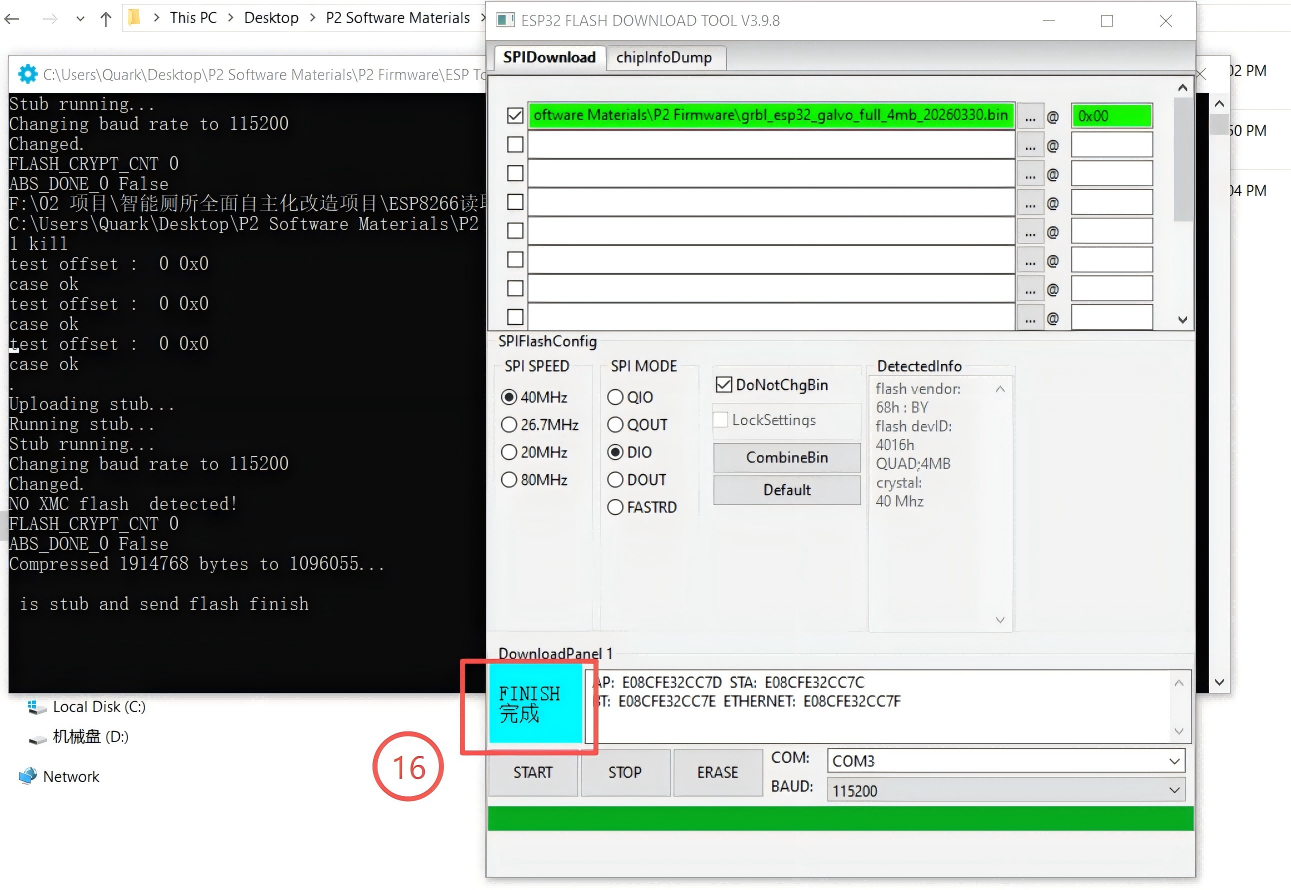
¶ Step 16: Update Completed
Wait until the progress bar reaches 100% and “FINISH” is displayed.
 ---
---
¶ Step 17: Restart Device
Disconnect and reconnect the power cable and USB cable to restart the P2 machine.
¶ 6. Important Notes
- This update is optional if you are not using LaserGRBL
- Interrupting the update may cause firmware damage
- Always use the correct firmware version
¶ 7. Troubleshooting
If the update fails:
- Reconnect the USB cable
- Restart the software and device
- Ensure the correct COM port is selected